
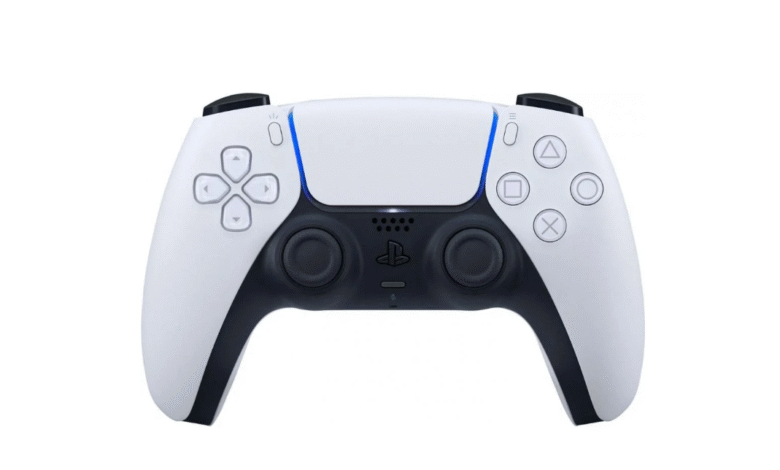
If you’ve made the switch from PlayStation to PC, you know there is a learning curve between the controller and the mouse and keyboard. If you are looking to stay on controller while still getting all the benefits of playing on PC, this one is for you.
Wondering how to actually connect the PS5 controller to PC? This guide has everything you need to know.
Plugging in the Controller
The fastest way to connect your PS5 controller to your PC is by grabbing a USB-C to USB-A cable. This is the cable that comes with your controller when you buy it. However, these cables can be quite short, so I recommend buying one that is slightly longer for more comfort.
Now, with the cable, you will:

- Plug the USB-C end into the controller (this is at the top of the controller).
- Plug the USB-A end into the PC.
There shouldn’t be any recognition issues between the PC and Windows. There’s no extra setup necessary. Just load your favorite game and get to playing.
Wireless Setup
If you don’t have a cable or don’t want to be stuck connected to the computer, you do have the option of Bluetooth connectivity if your PC supports it. If it doesn’t, you can always buy a Bluetooth adapter and solve that issue.
To connect your controller via Bluetooth:

- Open your PC’s settings
- Scroll to Bluetooth & Devices
- Choose the option of Add Device
- Select Bluetooth
You should now get your controller and hold down the PlayStation button and the Share button simultaneously. It should only take moments, and the touchpad will start flashing. This indicates that the controller is ready for pairing.
Your PC will now be able to recognize the new Bluetooth device, which is the Wireless Controller. Click it and wait for it to connect. Once it does, you are all set.
That’s It?
Yep. That’s all there is to connecting your PS5 controller to your PC. Either way you prefer, neither requires much effort or time. No matter which option you choose, you’re ready to play.
Source link