
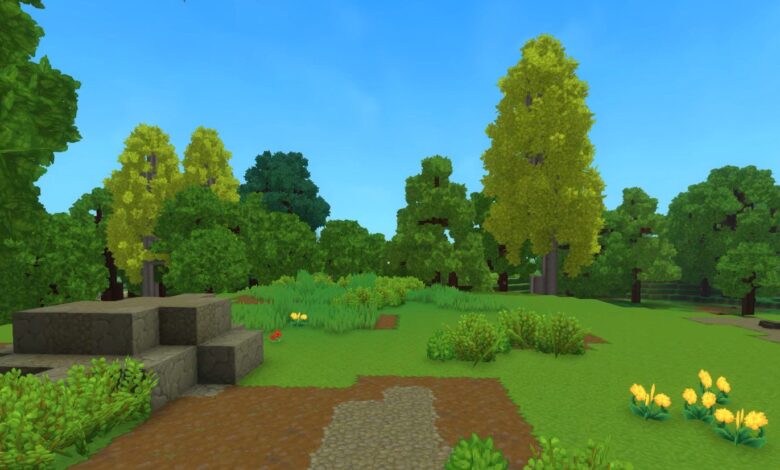
Hytale’s early access is now live and the Minecraft-like game is ready for you to play. You can play the game with your friends and even host your own server for this purpose. There are some services selling you the ability to host servers with multiple features – but these cost money.
So, in this guide, we’ll show you how you can make your own server on your device and play with your friends on it. Without further delay, let’s get into it!
How To Make A Server
Before you attempt to make a server on Hytale, here are some prerequisites that you should consider so you can have a smooth experience:
- Own a good internet connection
- The server should only be used to host friends and people you trust
- This is because it shares your IP which can breach your privacy and also can be used for DDoS attacks
- Have at least 16-32 GB of RAM since the game is quite resource intensive.
If you’re only interested in playing with your friends without a server or have already set one up, check out our how to play with friends guide.
With that said, let’s get into the steps.
#1 – Download Hytale Server File
Before you can setup the server, you will need to download and authorize yourself in order to download the server file.
Step 1: Down The Hytale Server Downloader Zip File
Starting off, you will need to download the Hytale Server file. You can do this from the official hytale server manual but it’s a bit complicated.
Instead, you can use this direct link: hytale official server downloader zip file (download starts automatically)
After this download, your goal is to extract the zip file. You can extract it anywhere you are comfortable with such as your Desktop.

Step 2: Authorize The Downloader
Open the extracted file and double click the hytale-downloader-windows-amd64 file. This will open a window automatically where you will be given a unique auth code.

To authorize the downloader, copy the link in the window. You can do this only via the Ctrl + C shortcut and not right click. After that, paste it into your browser while making sure that you do not close the auth window.

After you do this, you will need to login to your account where you purchased the game. Do that and enter the code to authorize the server.

Step 3: Download The Server File
After you successfully authorize your server, it will start automatically downloading in the installer window.

Once the download is complete, you will find a new zip file in the folder. Make sure that you extract this file as well. You can move this new file anywhere as well and even rename it for ease.
This will be your main server file that contains everything related to your server.

#2 – Start Hytale Server
With the server now downloaded, the next step is to actually start it.
Step 1: Create A Batch File
Open the server file that you extracted in the previous step. Here, you need to right click and create a new text document (.txt file).

In this text document, you will need to copy and paste the following text in Notepad:
java -Xms128M -Xmx6096M -jar Server/HytaleServer.jar –assets Assets.zip
PAUSE
You can copy and paste it directly from above.

Next, click the File tab in Notepad and select Save As. Here, you will need to do the following:
- Enter run.bat as File name
- Save as type: All files

Step 2: Start Hytale Server
After the file is created, simply double click and a new window will open. Do not panic when you see some weird text in the window as this is all completely normal!
At the end, you should see the Hytale Server boot up. But this is not the end of the process and joining the server will not work.

Step 3: Authenticate Hytale Server
Whenever you start a new server in Hytale, you need to reauthenticate the server. To do this, you will need to type the following command in the same window where the Hytale server booted up:
auth login device
Enter this command and you will see another code followed by a link. Copy and paste this link into a browser using the Ctrl + C shortcut as before.

After that, you will need to enter the code and login with your account. Doing so will authorize the server.

Optional: You can also stop the server by simply typing and entering the following command:
stop
However, keep in mind that when you start the server again, you will need to reauthenticate it as before.
Troubleshooting – If The Server Does Not Start
If the Hytale server does not start for whatever reason, you might need Java 25. This is what the Hytale servers run on.
To download it, visit the following link: java 25 official downloads page
Here, you want to select the x64 Installer for Windows and install it. After that, try to start the server again and it should work hopefully.
You can also find additional info on hytale’s official server manual.

#3 – Join Server
With the server set up, the next step is to join it and also enable your friends to be able to do so as well.
Step 1: Add Local Server
To add the server, open Hytale with the server running. Go to Servers in the main menu and select the Add Server option in the bottom right.

Here, you want to add the Connection Address as localhost (exactly how it is written). You can enter the name as whatever you want like Local Connection.
After that, you can even double click the server and you will be able to enter your world. However, your friends will still not be able to join.

Step 2: Enable Port Forwarding
The next step is to enable port forwarding on your router. You might need to contact your ISP for this step depending on whether you know your router login.
To do this, you first need to open the Command Prompt. You can do this by searching cmd in your Windows Search Bar.

After that, type the following command in the window:
ipconfig

This will list down all your ip addresses. The ones that you want to note down will depend on whether you are using Wifi or your ethernet cable.
Make sure to note down the following details:
- IPv4 Address (the one with the numbers only)
- Default Gateway.

Next, copy and paste the default gateway into your browser. This will open your router login and you will need to enter your login here. If you have trouble with this part, you can contact your ISP and they can help you get the credentials.
In your router tab, you will need to go to the Port Forwarding section. The placement will depend on which router you are using.
In the Port Forwarding menu, you want to do the following:
- Add or select a service
- Name the service as Hytale Server (or anything you want)
- Select the protocol as UDP
- Enter the port as 5520 anywhere it asks
- Enter the internal IP address as your IPv4 address you noted down
- Select your own device (laptop or PC) as the attached device.
With these steps, you will now have port forwarding available.
Note: Your router menus might look different than the ones mentioned here. They can differ from manufacturer to manufacturer so you might see drop down menus in some areas. If you get confused anywhere, contacting the ISP is a good option.

Step 3: Add Public Server
With port forwarding enabled, now you want to add a public server that your friends can join. For this purpose, you need to obtain your Public IP.
You can do this by searching for your public ip on google and using any site. For example, you can use the whatsmyipaddress site and it will give it to you.
Make sure that you do not share this public IP with anyone as this exposes your privacy and your server to DDoS attacks.

After you have your IP Address, go to Hytale again and navigate to Servers in the main menu. Here, select the Add Server option in the bottom right corner as you did before.
This time, you will paste your public IP in the Connection Address. You can name the server whatever you wish.
With this new public server created, you can now join the server. Now, you will be able to invite your friends to this server as long as it is running!

Wrap Up
That’s everything you need to know about creating your own Hytale Server and being able to play with your friends on it. It is quite a complicated process but with the game relatively new this is to be expected. Hopefully, you will be able to run it smoothly and not run into any issues. Make sure that you do not share your public IP with anyone as this can expose you! You can also explore other paid services that take care of all these steps for you and are even available to help you with any issues.
Source link