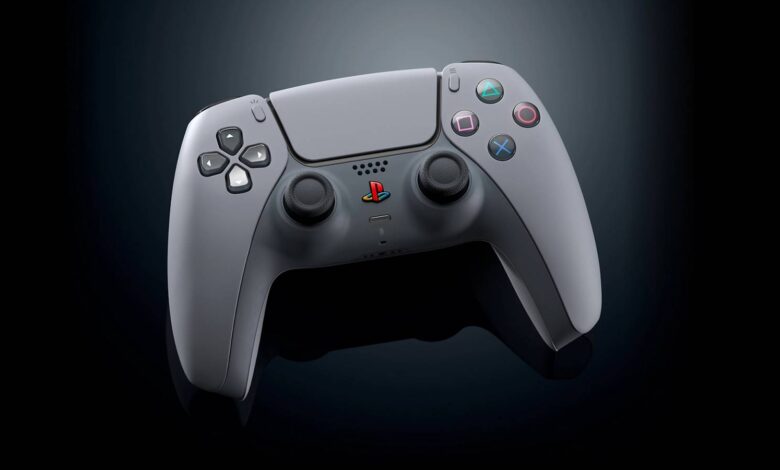
Over time, you might notice that your PS5 controller starts having an annoying issue known as stick drift, with no apparent way to fix it.
Stick drift is when your controller thinks the stick is being pushed in a direction, even though you’re not even touching it. It usually develops on its own over time, mostly caused by wear, but it’s always annoying!
In this article, we’ll go over various potential ways to get rid of this issue.
Testing Stick Drift

Before we go into the potential fixes, we want to recommend plugging your PS5 controller into a PC and visiting the Gamepad Tester website.
This handy website will make it easier for you to see how much stick drift your controller has. Just plug it in and open the website on your PC!
You should see something like the example above. As you can see, the left stick on the controller has drift and is pushing down and to the left in neutral.
Now, this is by no means a mandatory step or anything. Nonetheless, it does help give you a clearer visual of what’s going on with your controller. But, that said, let’s now go over the fixes.
Potential PS5 Controller Stick Drift Fixes
Rotate the Sticks

The first potential fix is a simple one. Just put your thumbs over both of the controllers’ sticks and slowly do a full rotation in one direction.
Do at least 3 rotations in one direction, then stop and rotate in the opposite direction. Remember to do it relatively slowly as well, no need to do it too fast or anything.
After that, repeat the rotations while pushing the sticks down to press L3 and R3. Do 3 full rotations in both directions while holding the sticks down and you’re done!
This should help dislodge any dust or other debris that might have gotten under the sticks. Plus, it’s a fairly easy method that might fix or alleviate light stick drift. So, it’s a good one to try first of all.
Do note, though, this is a temporary fix in most cases. You might need to repeat the process later, but it shouldn’t be a huge deal in most cases.
Blow the Stick
Another potential fix is to just try blowing into it. For this, just lightly pull the stick up and then blow some air into it with your mouth. While doing this, we also recommend blowing in different spots of the stick. It’s as simple as that!
Like the previous method, this mostly works in cases where the drifting is caused by debris. Plus, it’s also a very simple and quick method to try out, so it doesn’t hurt.
Reset the Controller

For this fix, you’ll need some small and pointy. A toothpick or small screwdriver, for example, might just do the trick. We advise against using anything too sharp, though!
Your goal here is to press the button hidden inside the tiny circle on the back of the DualSense controller, as shown above.
Press and hold the button for a few seconds while your controller is on and it will shut down. Make sure not to touch the sticks or other buttons at all while doing this, just in case.
This will factory reset the controller. Do note that this means that you will need to sync it up with your PS5 again, but that’s about the only downside to this method.
This method mostly works in cases where the stick drift is caused by some weird software issues. The controller will recalibrate upon turning back on, so it might just fix things for you.
Use a Recalibration Tool

First of all, a disclaimer for this method: try this at your own risk. This method can modify the controller’s software, which has the potential to “brick” the controller if misused. Make sure to carefully read the instructions on the website. Again, understand that you’re doing this at your own risk.
With all of that said, you will need to plug your DualSense controller into a PC and visit the DualShock Calibration GUI website. Yes, it says “DualShock”, but it supports DualSense too!
Then click on “Calibrate Stick Center” and follow the instructions on the website. It’ll help you recalibrate your controller’s sticks, potentially eliminating any software-based causes of stick drift.
Again, though, remember that this method is at your own risk. Neither we nor the tool’s developers are responsible if this causes issues for your controller. Be careful and treat it as an advanced method.
Closing Words

If none of these potential fixes worked for you, it’s likely your DualSense has a more severe case of stick drift. It might be due to worn sticks and components on the controller, for example.
In such cases, we would recommend trying to get in touch with PlayStation support if possible. They might be able to fix it for your controller or get you a replacement. We highly recommend doing this if your controller is still within warranty.
Alternatively, you can open up the controller and replace its sticks with new ones. However, this is extremely advanced and outside of the scope of this guide.
You’ll need to have a good handle at operating on electronics, desoldering, and soldering. Plus, you’ll need to buy the replacement sticks online. This will also void your warranty, if it’s still active. Regardless, it’s a potential solution as a last resort!
We hope this helped you fix the stick drift on your PS5 DualSense controller. Are you also wondering if you can connect Air Pods to the PS5? We can answer that for you!
Source link